

 Vutesa
Your Videos. Your Audience. Your Business.
Upload, organize and share business videos without sending prospects away. Videos you upload play with no ads and no competitor videos beside them. Upward Videos live on your Bio / Profile Page, connect viewer engagement to your CRM, and turn watching into real business opportunities.
No third-party ads
Directly uploaded videos play without advertising interruptions on your page.
No competitor recommendations
When a video ends, viewers stay with you, not with the next creator.
Everything lives together
Videos appear beside your profile, scheduling, reviews and recent work.
Public video platforms are built to keep viewers on their platform. Upward Videos are built to keep viewers connected to you.
Why use Upward Videos?
Four practical reasons the video experience belongs on your own business page, not on a public network that competes for your viewer's next click.
No third-party advertising
Videos you upload to your library play without ads. Linked videos follow their own platform's rules.
No competitor recommendations
When your video ends, viewers stay inside your business experience and are not shown competing companies or creators.
Engagement connects to your CRM
Followers, commenters and people who like or dislike a video are added to your CRM as leads.
Everything lives together
Videos appear beside your profile, social links, reviews, recent work, scheduling and contact information.
Your video should promote you, not the platform hosting it.
YouTube, Vimeo, Wistia and Loom are excellent platforms built for different use cases. Upward Videos combine video sharing with your business presence, CRM and follow-up tools.
| Capability | Upward Videos | Traditional video platform |
|---|---|---|
| Third-party ads on videos you upload | No | May occur depending on platform |
| Competitor recommendations | No | Possible on public platforms |
| Video displayed with your Bio / Profile | Yes | Usually separate |
| Schedule a Meeting nearby | Yes | Separate workflow |
| Reviews nearby | Yes | Separate workflow |
| Contact information nearby | Yes | Separate workflow |
| Follower connected to CRM | Yes | Usually requires integration |
| Commenter connected to CRM | Yes, through sign-in | Usually requires integration |
| Likes / Dislikes connected to CRM | Yes, through sign-in | Usually remain platform engagement |
| Tracked Links | Integrated | Separate tool |
| QR Codes | Integrated | Separate tool |
| Company + Member distribution | Yes | Not designed around replicated teams |
| White-label business experience | Yes | Platform branding commonly remains |
Company Videos and Personal Videos
Every video belongs either to the company library or to an individual member. That decides who can edit it and where it can appear.
Company Videos
- Created or added by a Company Owner or Company Admin.
- Belong to the company library and shared with members.
- Members normally choose whether each one appears on their Bio / Profile.
- Owners and Admins can require a video, so it always appears and can't be hidden.
- Members cannot edit or delete a Company Video.
Personal Videos
- Uploaded, recorded or linked by the member themselves.
- The member controls the title, description, category and visibility.
- Shown or hidden on their Bio / Profile Page at any time.
- Shared with a Quick Link, Tracked Link or QR Code.
Shown by member choice
The member has chosen to show this video on their Bio / Profile Page.
Displayed by default
A company default made it appear, and the member may still hide it.
Required by the company
The company requires this video on member pages, so no hide option is offered.
One video. Share it everywhere.
Every eligible video can be shared the way that suits the conversation, and each way still leads back to your business.
Quick Link
A simple, shareable link to any video, ready to copy and paste anywhere.
Tracked Link
A unique link that counts clicks and watch time and can be tied to a CRM lead or contact.
QR Code
Turn printed and in-person sharing into measurable video views.
Social and messaging
X, Facebook, LinkedIn, WhatsApp, Telegram, SMS and more from the same share sheet.
Watching becomes a conversation.
Visitors sign in with a code before they follow, like, dislike or comment. Upward then adds them to your CRM as a lead with the source Video. The same person is never added twice.
Follow
A visitor who follows your videos is added to your CRM as a lead you can follow up with.
Comment
Comments come from signed-in visitors, and you can approve each one before it appears.
Like / Dislike
A like or dislike is tied to a signed-in person, not an anonymous counter.
Next step
From there they can book a meeting, contact you or explore the rest of your profile.
What a visitor sees on a video page
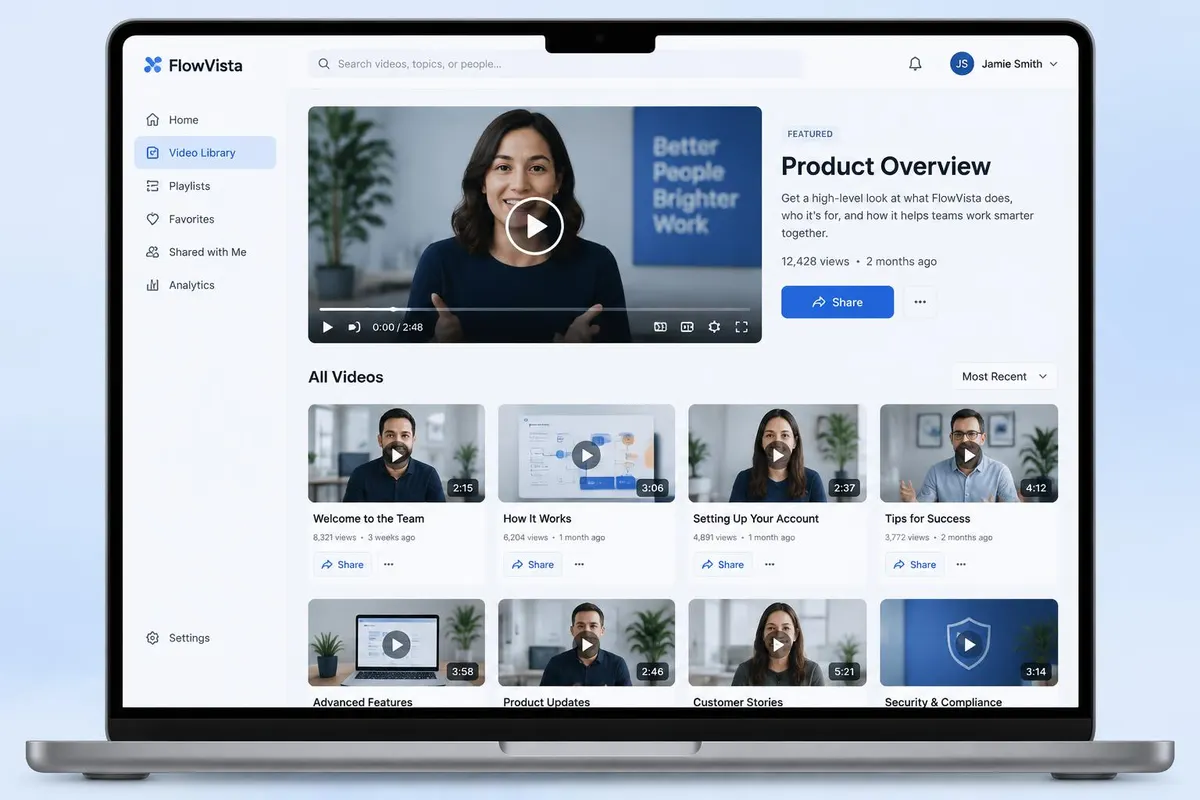
Every video has its own page on your profile, for example yourcompany.com/alex/videos/welcome. The player sits at the top. Below it are the title, like and dislike buttons, a Share button and the comment thread.
- A Follow button at the top of the page, so visitors can subscribe to your new videos.
- A list of your other videos beside the player, up to eight. It shows your videos only.
- No ads on videos you upload, and no recommendations from other companies or creators.
- An optional transcript viewer, when a transcript is available for that video.
Likes, dislikes and comments belong to a real person
A like on YouTube is an anonymous number. On Upward, a visitor signs in first, with an email or mobile code or a Google, LinkedIn, Facebook or Apple account. There is no password. That is what lets you see who reacted.
- Like or dislike a video, and like or dislike a single comment.
- Comment on a video and reply to a comment, one level deep.
- Sort comments by newest or top. Authors can delete their own comments.
- Turn comments or reactions off per video, or turn comments off for the whole company.
- You get an email when someone comments.
Approve comments before they appear
Turn on Moderate comments in Video settings and every new comment waits for your decision. The visitor sees a note that the comment was submitted for review, and sees their own comment marked Pending review. Nobody else sees it yet.
- Approve publishes the comment to the public thread.
- Hide takes an approved comment off the page. Use it to decline a comment.
- Delete removes it for good.
- With moderation off, comments publish right away. You can still hide or delete any of them later.
Every engagement lands in your CRM
When a visitor signs in to like, comment or follow from a video, Upward adds them to your CRM as a lead with the source Video, plus an activity note naming the video. The same person is not added twice. If they come back from another module, the lead gets a new note instead.
- Following your new videos also records the follow, with a note such as Followed New videos.
- You get an email the first time a new visitor registers, with their details.
- From the lead, you can message them, book a meeting or send a tracked link.
Follow: how visitors subscribe
The Follow button opens a short menu. A visitor can switch on New videos, Meetings and events, Reviews and Recent work, each on its own. The labels use the names you gave those sections on your page.
- The first follow asks for a code sent by email or text. After that, one click turns a topic on or off.
- Visitors can change their own details from the same menu.
- Followers are told about new videos, and you can see subscribers in your overview.
Company videos and personal videos
Company videos are added by a Company Owner or Admin and shared with members. Personal videos belong to one member. The owner type decides who can edit a video and how it appears on each profile.
- Company owners and admins can require a video on member pages, or let each member decide.
- Members cannot edit or delete a company video. They control their own personal videos.
- Company settings choose which members may display and publicly share company videos.
Upload, link or record with Vutesa Recorder
Add a video by uploading a file up to 250 MB (MP4, MOV or WebM), by pasting a link from YouTube, Vimeo, Wistia or Loom, or by recording. Vutesa Recorder captures your screen, camera and microphone and publishes into your library.
- Uploaded and recorded videos are hosted by Upward. Linked videos play in the other service's player, so that service's own rules apply.
- Vutesa can write a title and summary from a recording. You keep it or discard it before anyone sees the video.
- Public transcripts are shown when available, and a company setting can hide them.
- On the Free plan, recordings are limited to 5 minutes, with a 3-day recorder trial. Paid plans remove both limits and add a teleprompter.
Who watched, and how much
The video analytics show views, unique viewers, watch time, average completion and average view length for a date range, plus views over time and audience retention. A table ranks your videos by watch time and shows reactions.
- Send a tracked link to a lead or contact, and their name shows in the Viewers list with how much they watched.
- Views from people without a tracked link are counted as anonymous views.
Storage and plan limits
Limits are enforced when you upload, and the Videos screen shows how much of your storage you have used.
- Free: 5 videos and 2 GB. The 5 uploads and recordings are a lifetime count, and deleting a video does not give one back.
- Starter: 50 GB. Deluxe: 250 GB. Pro: 500 GB.
- Each uploaded file can be up to 250 MB.
- Upload more than your plan allows and Upward tells you how much space is left and offers an upgrade.
One touchpoint of a Multi-Touchpoint CRM
Videos live inside your Bio / Profile Page, next to booking, reviews, recent work and your contact form. Each of those touchpoints creates or updates a lead in the same CRM, so a visitor who watches, then books, is one person with one history.
From upload to follow-up
- 1
Upload, link or record
Upload an MP4, MOV or WebM file, paste a YouTube, Vimeo, Wistia or Loom link, or record with Vutesa Recorder. Choose company or personal.
- 2
Place it on your page
Pick a category, write a description and decide whether the video shows on your Bio / Profile Page.
- 3
Share it your way
Send a tracked link or quick link, show a QR code, or post to social channels from one share sheet.
- 4
Watch and engage
Visitors sign in with a code, then follow, like, dislike or comment. Each new person becomes a CRM lead.
- 5
Moderate and follow up
Approve or hide comments, read the analytics, and follow up from the lead record in your CRM.
See what your videos are really doing.
Track views, unique viewers, watch time, completion, audience retention and reactions. Named viewers appear when you send a tracked link.
Frequently asked questions
Do Upward videos show ads?
No. Videos you upload to Upward play with no ads. Linked videos from YouTube, Vimeo, Wistia or Loom play in that service's player, so its own rules apply.
Will viewers see competitor videos?
No. The list beside the player shows only the videos from the profile they are on. Nothing from other companies or creators is recommended.
Does a like or a comment really create a lead?
Visitors sign in before they can like, dislike, comment or follow. When they sign in from a video, Upward adds them to your CRM with the source Video and a note naming the video. The same person is never added twice.
Can I approve comments before they appear?
Yes. Turn on Moderate comments in Video settings. New comments stay pending until you approve them. You can hide an approved comment later, or delete it.
Do visitors need a password?
No. They get a 6-digit code by email or text, or sign in with Google, LinkedIn, Facebook or Apple.
How much video can I store?
Free: 5 videos and 2 GB. Starter: 50 GB. Deluxe: 250 GB. Pro: 500 GB. Each upload can be up to 250 MB.
Can I see who watched my video?
Yes. Send a tracked link to a lead or contact and their name appears with how much they watched. Other views are counted as anonymous.
What is the difference between company and personal videos?
Company videos are added by a Company Owner or Admin and shared with members. Personal videos belong to one member, who controls them.
Related
Vutesa Recorder
Record your screen, a tab or your camera from a floating studio, stop, and your link is ready. Tracked links tell you exactly which lead or contact watched.
Bio / Profile Pages
More than a link in bio. Your Upward page showcases who you are and what you do — and connects every visitor action to your CRM.
CRM
A CRM that fills itself from every touchpoint. Leads, contacts and companies, a pipeline you can shape, and one timeline per person.
Tracked Links
A normal link gets someone from one place to another. A Tracked Link also tells you whether it was opened, when, from where, and, if you made it for a person, by whom.
QR Codes
A QR code on a card, a flyer, a slide or a name tag should lead somewhere you can measure. In Upward, QR codes are built into every share sheet and every Tracked Link.
Analytics
See who visits, where they come from and what they do, then open the person behind the number.
Review System
Reviews that keep the relationship. Collect, approve and share reviews on your own page — and turn every reviewer into a CRM contact.
Recent Work
Show your work, share it, and see what it does. Publish completed projects with photos and stories, share each one on its own, and turn interest into leads.
Have a question about Video Platform?
Ask Vutesa, Upward's AI assistant — answers draw on this page's content.
Ready to turn every conversation into growth?
Start free, then replicate your system across your whole team.