

 Vutesa
Your Finished Work Is Your Strongest Proof.
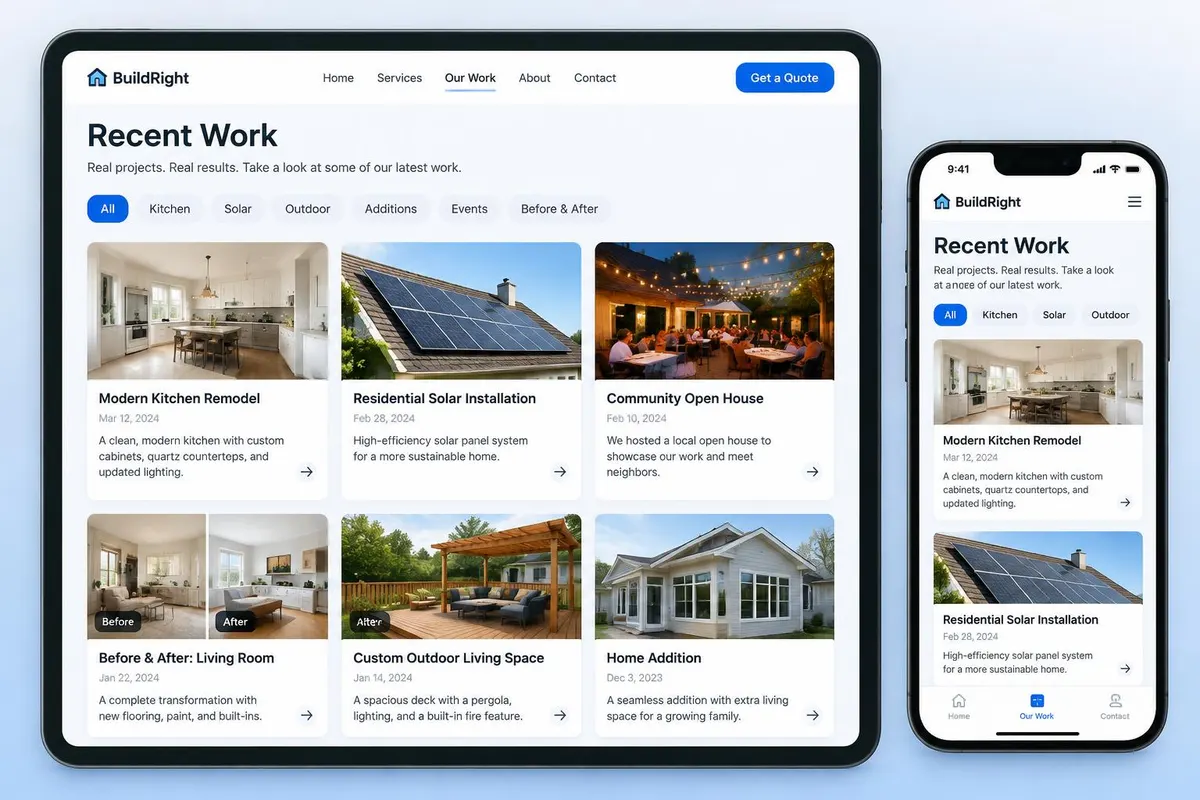
Recent Work is more than a photo gallery. Every project sits on your own Bio / Profile Page, can be shared on its own with a link or QR code, tells you where the attention came from, and adds visitors who follow your work to your CRM, so a browse turns into a conversation.
Proof people can see
Visual results sell better than any description.
Every project travels
Share one project, not a whole page.
Interest becomes a lead
Followers are added to your CRM, and tracked clicks tie to a person.
A static gallery shows your work. Recent Work shares it, measures it and turns it into follow-up.
Show your work, share it, and see what it does.
Four things Recent Work gives you that a static gallery cannot.
Show your work
Publish completed projects with photos, a category, a date and a short story of what you delivered.
Share it anywhere
Send a single project by link, QR code, email or social post instead of pointing people at a whole page.
Grow an audience
Visitors can subscribe to new work and are added to your CRM as leads.
Know what works
See views over time, which categories attract attention, and which projects generate leads.
Recent Work vs. an ordinary gallery
Portfolio sites and photo galleries display work. Upward connects it to your profile, sharing, analytics and CRM.
| Capability | Upward Recent Work | Photo gallery |
|---|---|---|
| Lives on your own profile page | Yes | Usually a separate site |
| Every project can be shared on its own | Yes | Rarely |
| Tracked links and QR codes per project | Yes | No |
| Visitors can subscribe to new work | Yes | No |
| Views, sources and categories measured | Yes | No |
| Interest becomes a CRM lead | Yes | No |
| Company work shared by the whole team | Yes | No |
Two kinds of work, one profile.
Company work is created once and displayed by the whole team. My work is yours: your customers, your projects, your results.
Company Work
- Published by the company and made available to members.
- Members choose whether it appears on their profile.
- Can be marked required so it always shows.
My Work
- Projects the member completed themselves.
- The member controls photos, description and category.
- Public or private at any time.
Built for work people can see.
If the result is visual, Recent Work turns it into marketing.
Trades & home services
Roofing, remodels, installations, before-and-after results.
Property & real estate
Listings sold, staging, developments and site work.
Hair & beauty
Cuts, colour, styling, nail designs and transformations.
Events & speakers
Stage presentations, workshops, conferences and live events.
Add a short video to any project.
Deluxe and higher plans can upload a project video alongside the photos, so visitors watch the result, not just look at it.
One video per project
Upload an MP4 or WebM walkthrough, before-and-after or customer reaction that plays at the top of the project.
Photos still lead
The first photo stays the cover image everywhere the project appears.
Up to 250 MB
Each project video can be up to 250 MB. Upload an MP4 or WebM file.
Included with paid plans
Free plans add photos only. Upgrade to add video to any existing project later.
Every project can travel on its own.
Share a project the way that suits the conversation, each way is measured separately.
Quick Link
A simple link to the project with no tracking, ready to paste anywhere.
Tracked Link
Counts clicks and can be tied to a CRM lead or contact.
QR Code
Perfect for print, vehicle wraps, signage and job-site handouts.
Social and messaging
X, Facebook, LinkedIn, WhatsApp, Telegram, SMS and more from the same share sheet.
What a visitor sees on your Recent Work page
Your public page lists your projects as cards with a cover photo, a category and a date. Visitors can search, sort by latest, oldest or title, switch between grid and list, and filter by category.
- Category filters appear when you use more than one category.
- Each project has a Share button and its own page.
- A Follow button sits at the top, so visitors can subscribe to new work.
A page for every project
Each project opens to a full page with a photo gallery, category, date, address, description and an optional link. Visitors can share it or follow your work from there.
- Up to 12 photos per project. The first photo is the cover everywhere.
- An address, shown with map coordinates when you pick a place.
- A title of up to 160 characters and a long description.
- An optional link to a related page.
Photos, and a video on paid plans
Photos are available on every plan. A short video on a project, up to 250 MB, needs a paid plan. A Free plan can add video later by upgrading.
- Visitors see the video at the top of the project.
- Photos still lead. The first photo is always the cover.
Categories you control
Create your own categories, such as Remodels or Roofing. Visitors filter by them, and the overview shows which categories get the most views.
- Company owners can set up company categories that members use.
- A category can be switched off without losing the projects in it.
Visitors subscribe to new work
The Follow menu has a Recent work switch. A visitor signs in once with a code, then switches it on. When you publish a project, followers get an email. Following also adds the visitor to your CRM.
Views and sources are measured
The Recent Work overview covers the last 7, 30 or 90 days, or this year. It shows work views over time, views by source, and views by your own categories.
- Sources: Bio / Profile Page, QR Code, Tracked Link, Email / Newsletter, Social Media and Direct / Other.
- Engagement: shares, tracked link clicks, QR code scans and subscribers.
- Top performing recent work, with clicks, shares and leads for each project.
- A short written insight points out your strongest project and category.
Interest becomes a CRM lead
Visitors who sign in to follow your work are added to your CRM as leads, with the source Recent work. You can also link a project to a lead or contact, for example the customer it was done for, and tracked links tie clicks to a person.
- Leads from recent work are counted in the overview.
- The same person is not added twice. Later activity is added as a note.
Company work and personal work
Company work is added by a Company Owner or Admin and can be shown on member profiles. Personal work belongs to one member.
- Company settings control who may publish work publicly: everyone, team leads only, or no one.
- Company owners decide which members can display company work.
- Members control the photos, text and category of their own projects.
Plan limits
Each plan includes a number of projects. Free plans can add photos only.
- Free: 5 projects.
- Starter: 25 projects.
- Deluxe: 50 projects.
- Pro: 100 projects.
One touchpoint of a Multi-Touchpoint CRM
Recent Work lives on your Bio / Profile Page next to your reviews, videos and booking. Each touchpoint creates or updates a lead in one CRM, so a visitor who follows your work and later books is one person with one history.
Attention that becomes follow-up.
Subscribers are added to CRM with the source recorded, and every view is attributed to a source: profile, tracked link, QR code, social, email or direct.
- 1
Publish a project
Add a title, photos, a category, a date and the story of the result. Paid plans can add a short video.
- 2
Show it on your profile
Projects appear on your Bio / Profile Page beside your reviews, videos and booking.
- 3
Share it your way
Share a project by tracked link, quick link, QR code or social post.
- 4
Visitors follow and engage
They view, share and follow your new work. Following requires a quick sign-in and adds them to your CRM.
- 5
Measure and follow up
See views by source, shares, scans and leads, then follow up from the lead record.
Know which project to share next.
See views over time, top categories and the projects that generate leads. A short written insight points out your strongest project and category.
Frequently asked questions
How many projects can I add?
Free: 5. Starter: 25. Deluxe: 50. Pro: 100.
Can I add video to a project?
Yes, on the Deluxe plan and higher. Free and Starter plans add photos only. A project video can be up to 250 MB.
Can I share a single project?
Yes. Every project has its own page and a Share button for a tracked link, quick link, QR code or social post.
Can visitors subscribe to new work?
Yes. The Follow menu has a Recent work switch. Visitors sign in once, and they get an email when you publish a project.
Do visitors who follow become leads?
Yes. Following adds the visitor to your CRM with the source Recent work. The same person is not added twice.
What do the analytics show?
Views over time, views by source (Bio page, QR code, tracked link, email, social, direct), views by category, shares, link clicks, QR scans, subscribers and leads.
Can my team share company work?
Yes. A Company Owner or Admin adds company work, and company settings choose which members can display and share it.
Related
Bio / Profile Pages
More than a link in bio. Your Upward page showcases who you are and what you do — and connects every visitor action to your CRM.
CRM
A CRM that fills itself from every touchpoint. Leads, contacts and companies, a pipeline you can shape, and one timeline per person.
Tracked Links
A normal link gets someone from one place to another. A Tracked Link also tells you whether it was opened, when, from where, and, if you made it for a person, by whom.
QR Codes
A QR code on a card, a flyer, a slide or a name tag should lead somewhere you can measure. In Upward, QR codes are built into every share sheet and every Tracked Link.
Analytics
See who visits, where they come from and what they do, then open the person behind the number.
Review System
Reviews that keep the relationship. Collect, approve and share reviews on your own page — and turn every reviewer into a CRM contact.
Video Platform
Keep attention where it belongs — on you. Host business videos without ads or competitor recommendations, and turn viewers into CRM contacts.
Team Replication
Build it once. Give every member their own branded Bio/Profile Page, CRM, calendar, chat and follow-up tools, inside one company system.
Have a question about Recent Work?
Ask Vutesa, Upward's AI assistant — answers draw on this page's content.
Ready to turn every conversation into growth?
Start free, then replicate your system across your whole team.